Personal Schedule
In the course directory (LSF), you can create your individual class schedule yourself. You do not need to be logged in to search or view courses. However, login is required to permanently save or print (PDF) your schedule. You have two options to build your schedule:
- via the degree program schedule
- via the course directory and then “Search Courses”
The individual paths (degree program schedules, course directory, or course search) were already explained in the previous section. Regardless of the selected path, you can add courses to your personal schedule by checking “bookmark” and then saving.
Open the Personal Schedule
IMPORTANT: You can only open your personal schedule after logging in.
In the My Functions area, click Schedule directly.


Personal Schedule View
Note: It is normal for the personal schedule to be empty on first access. As long as no courses have been bookmarked and saved, no dates are shown.
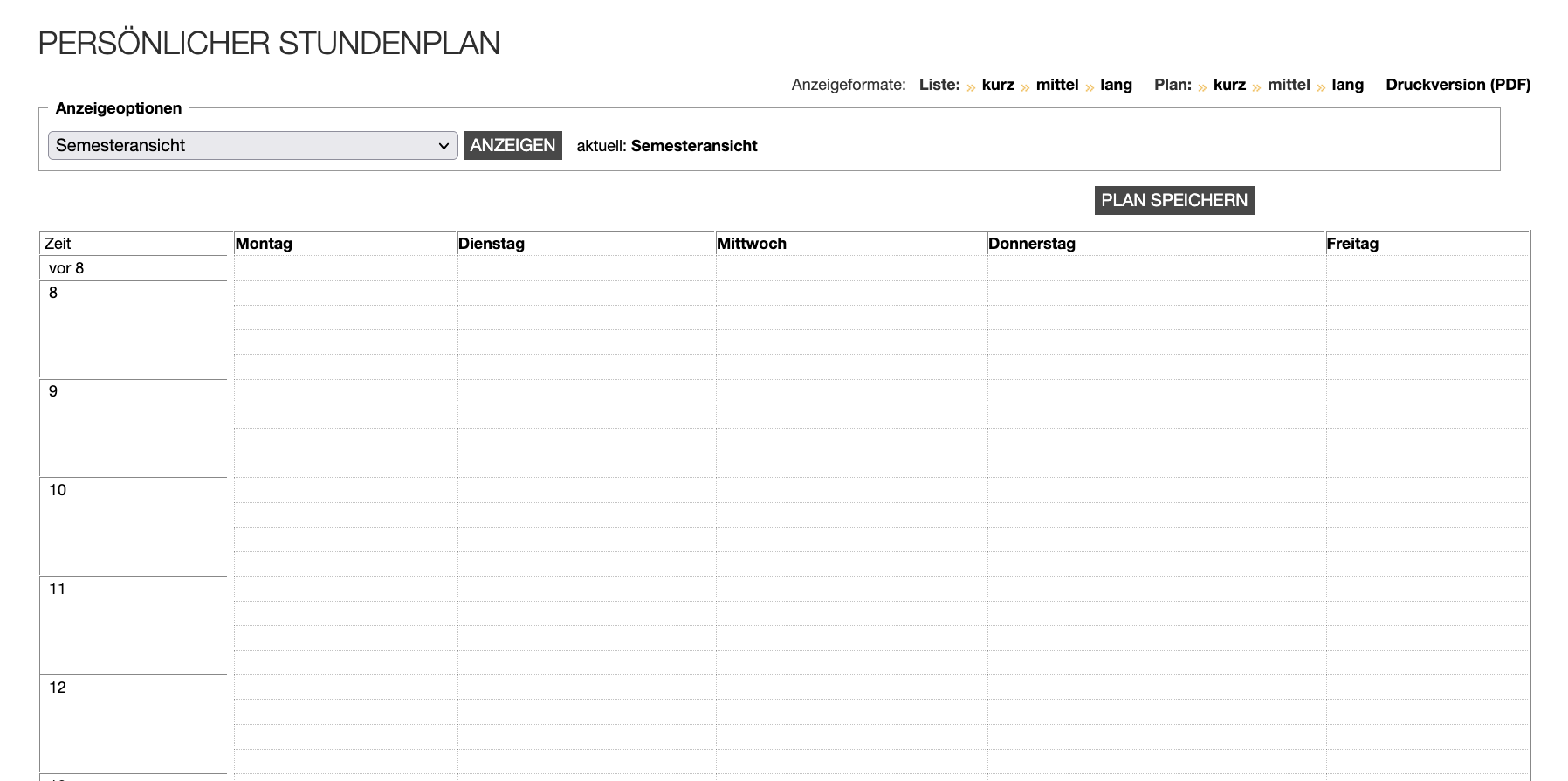
As soon as you add courses via “bookmark”, they appear as items in your personal schedule.
Note: Red borders indicate possible course overlaps. Depending on the selected view (for example weekly or semester view), these do not necessarily occur on the same day and may refer to different weeks.
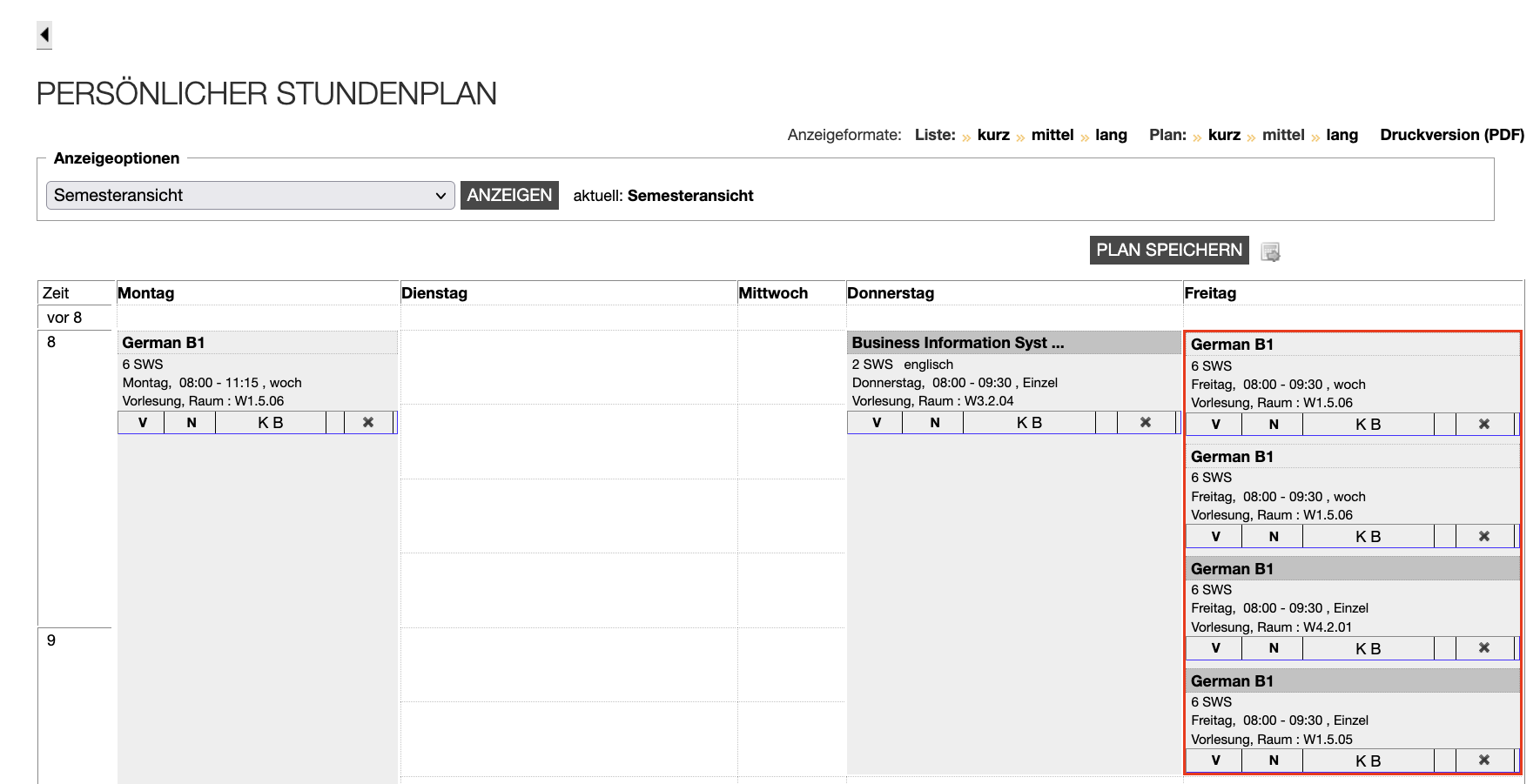
Save and Manage the Schedule
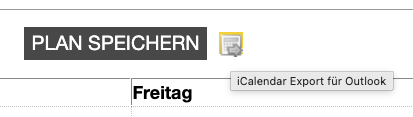
- Changes are only saved if you click “Save schedule” in the top right. Otherwise, bookmarks are kept for only about 15 minutes and are then lost.
- Individual courses can be removed again.
- You can switch between weekly and semester view.
- Use the small icon next to “Save schedule” to export your schedule (iCalendar export). The file can be imported into common calendar apps, including your university email account.
- PDF export is only available when logged in.
Last updated on