iOS Setup for Duo Mobile
This guide describes how to connect Duo Mobile on an iOS device (iPhone or iPad) with the Cisco Duo platform to complete multi-factor authentication (MFA) setup.
Requirements
- Active university account
- Access to your email inbox
- iPhone or iPad with installable Duo Mobile app
Invitation by Email
To set up MFA, you will receive a legitimate email from Cisco Duo with this sender address:
no-reply@duosecurity.com
Please always verify the sender address. If you are unsure, contact Campus IT: campusit-service(at)hs-pforzheim(dot)de
Step-by-Step Guide
Open invitation
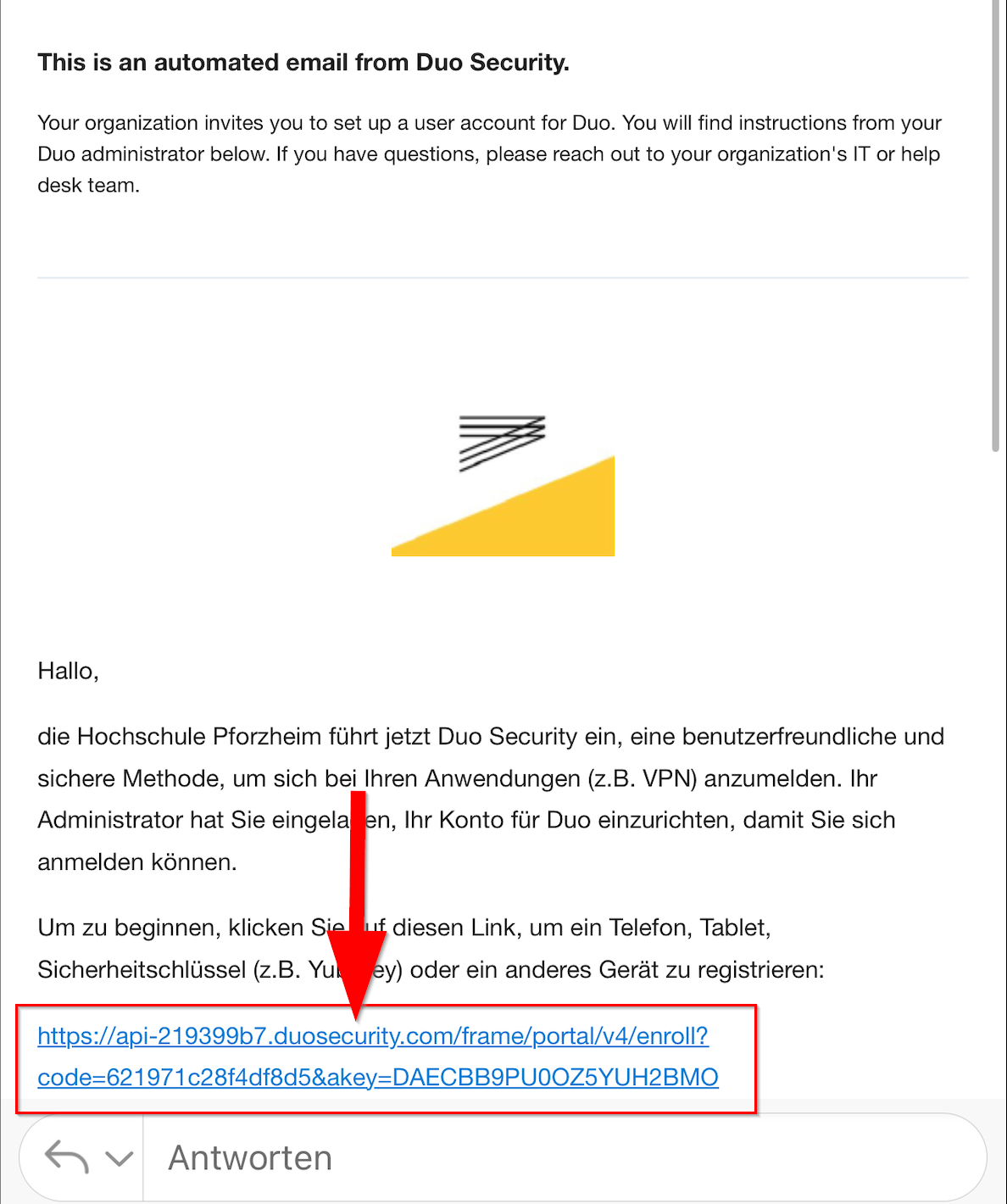
Open the email from Cisco Duo and tap the first link.
Start setup
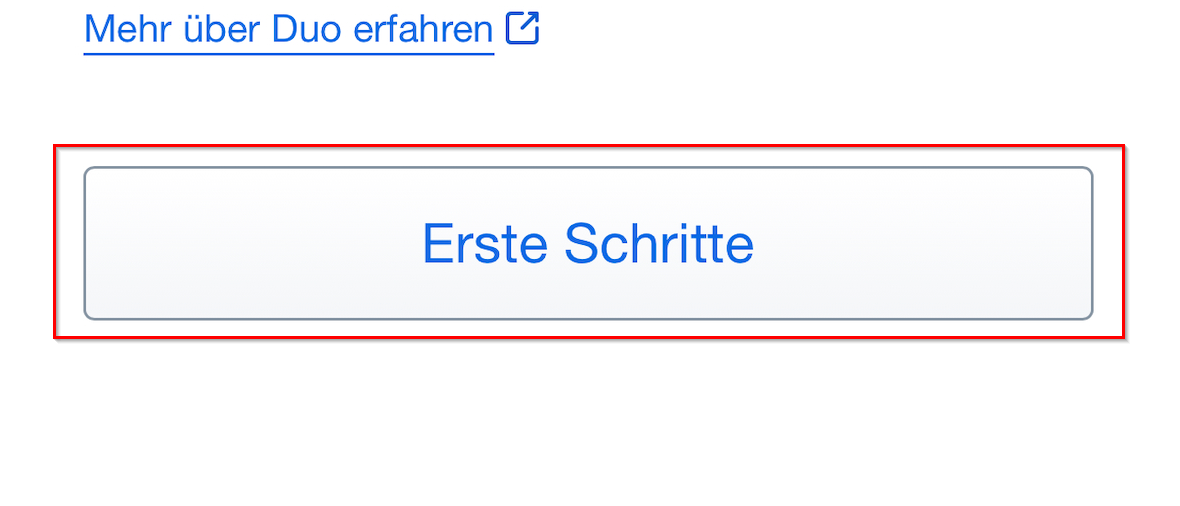
Tap “Get started”.
Select Duo Mobile
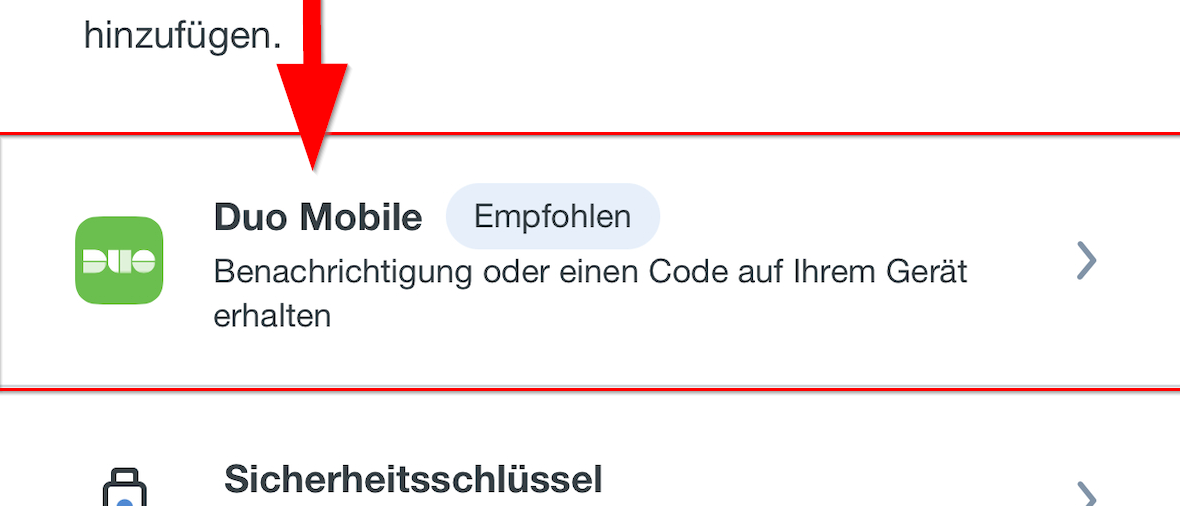
Select “Duo Mobile” as the authentication method.
Enter phone number
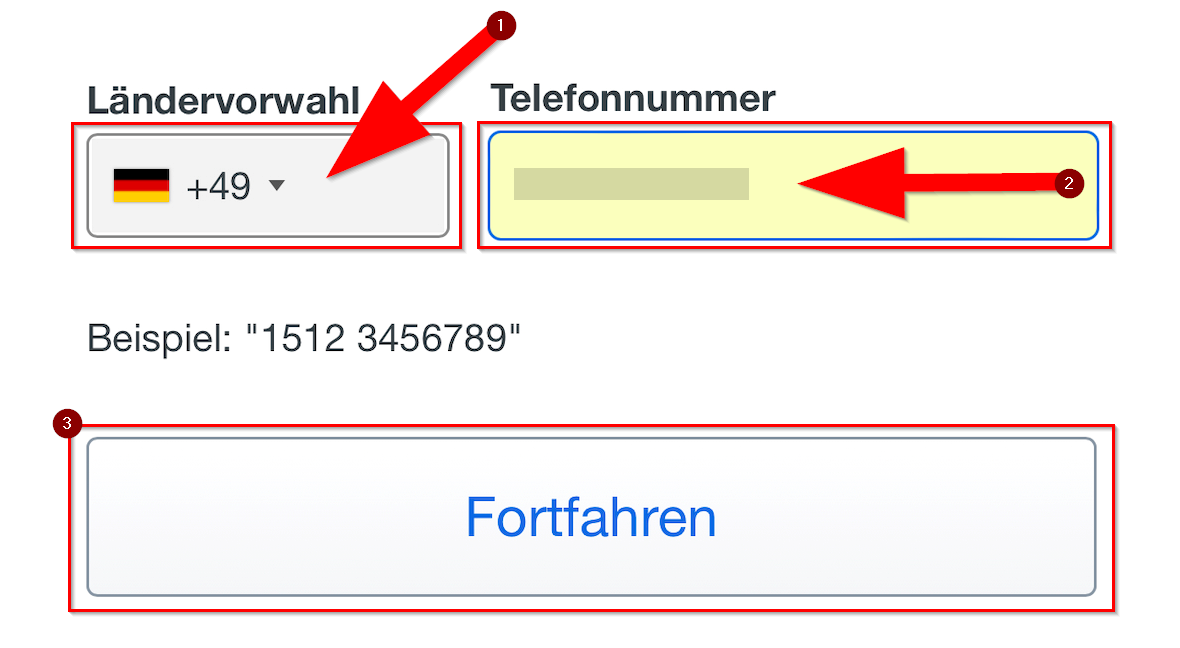
Select your country code, enter your phone number, and tap “Continue”.
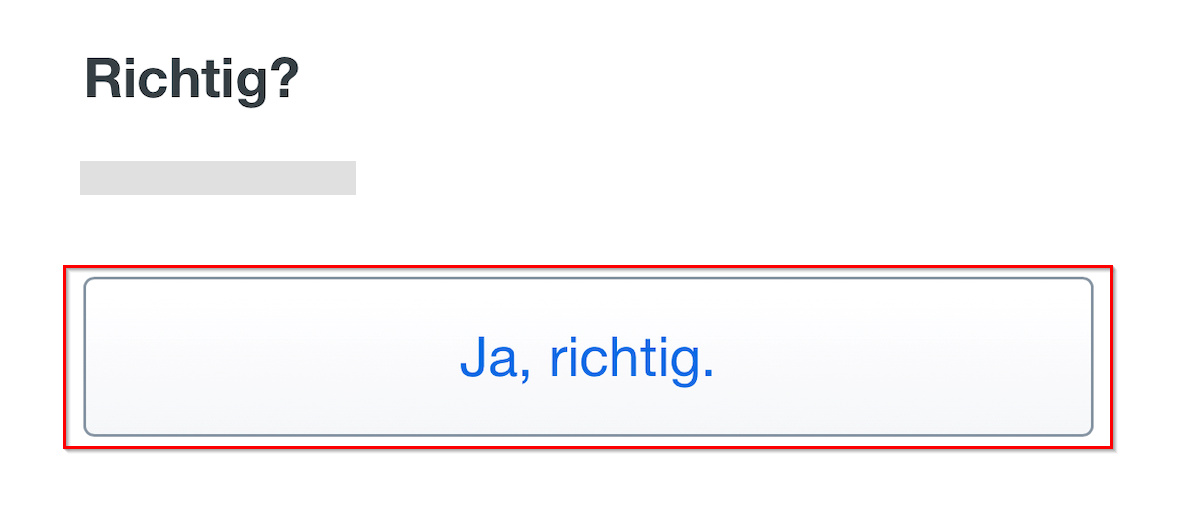
Confirm phone number
Confirm your entry with “Yes, that’s correct.”.
Continue
Tap “Continue”.
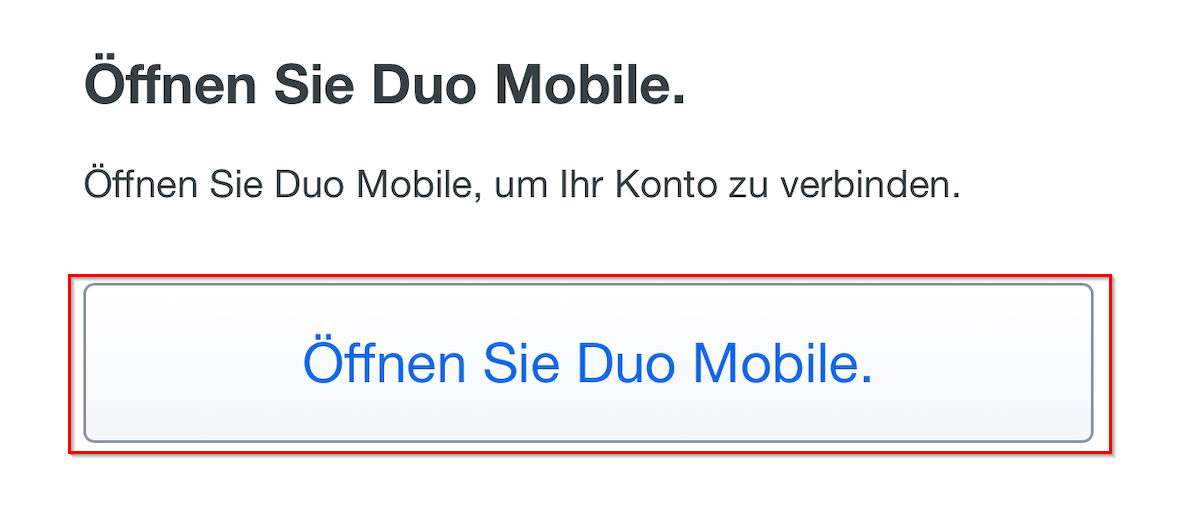
Open Duo Mobile
Tap “Open Duo Mobile”.
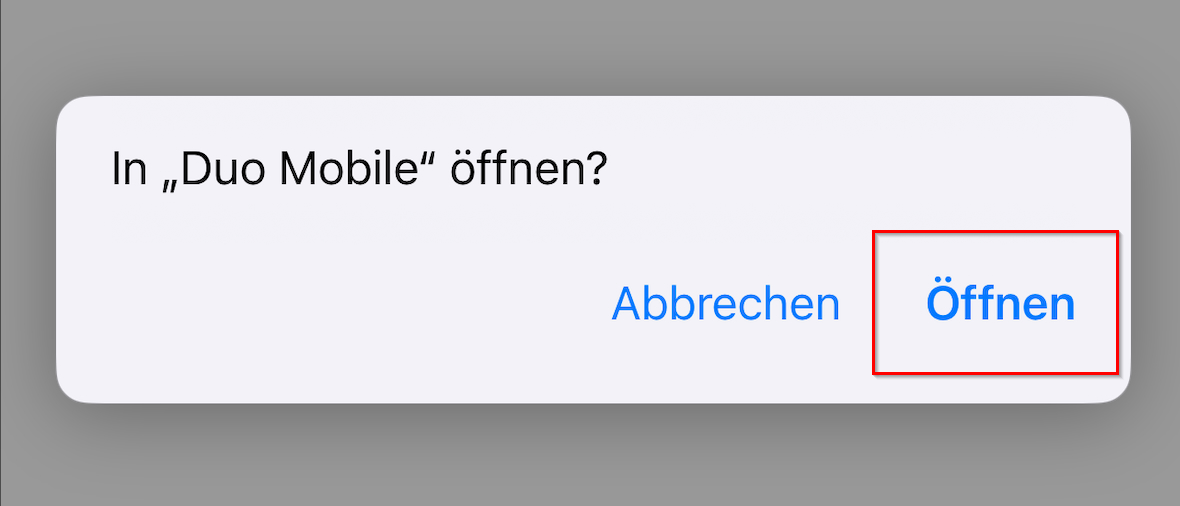
Confirm app permission
Tap “Open” to switch to the Duo Mobile app.
Set up account
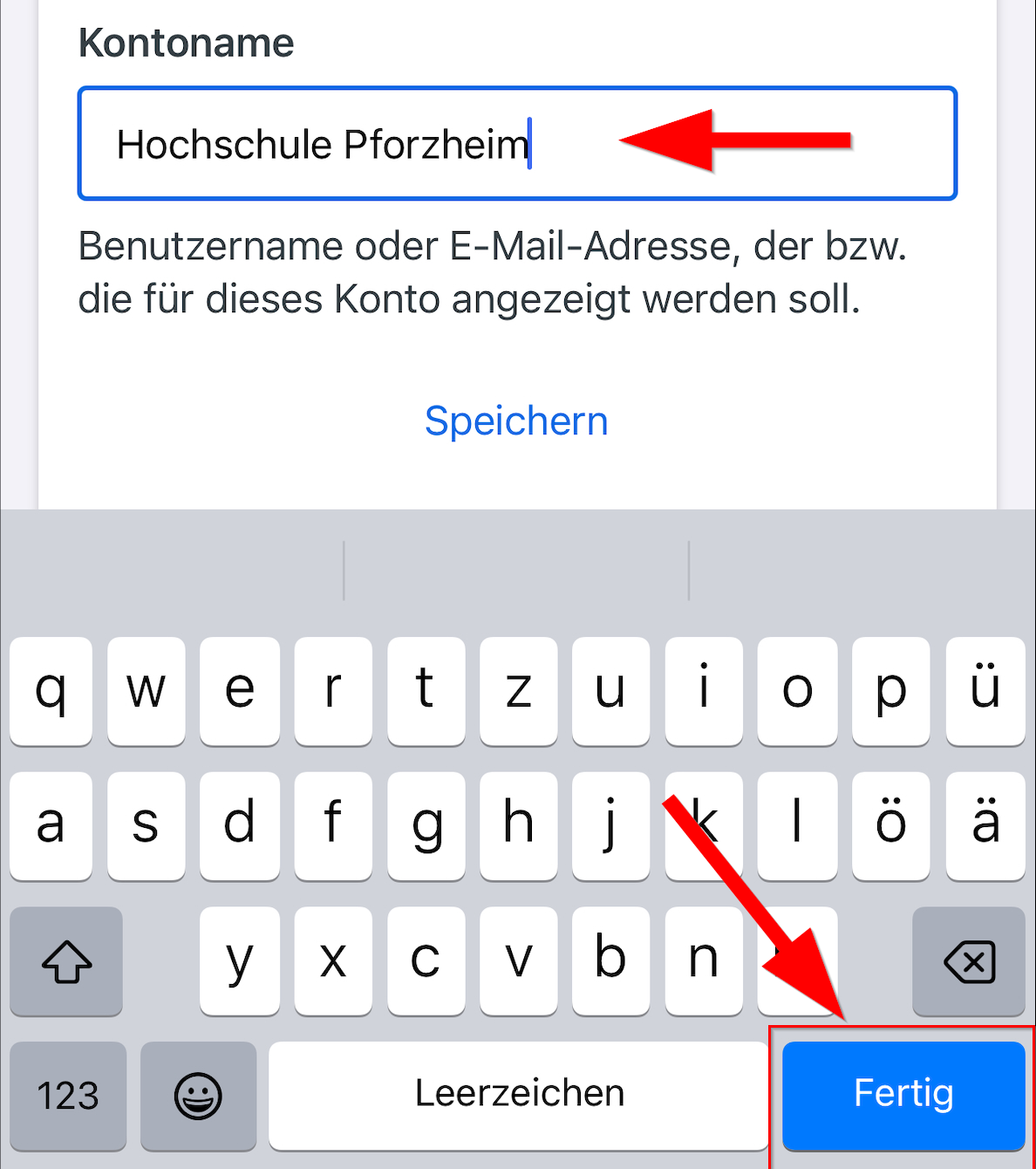
Assign an account name and tap “Done”.
Skip additional devices
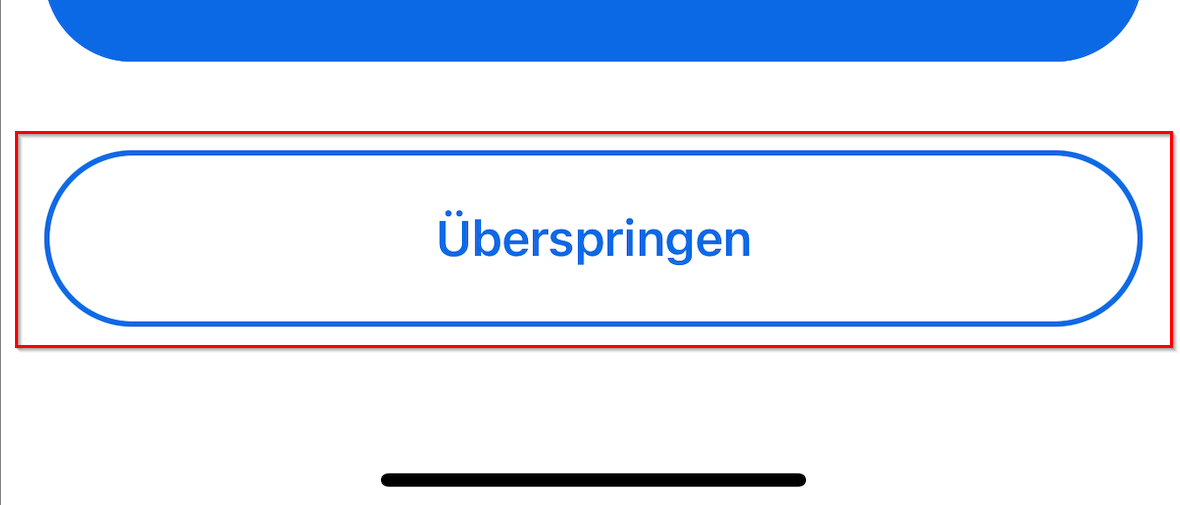
Tap “Skip” if you do not want to add additional devices.
Confirm
Tap “OK”.

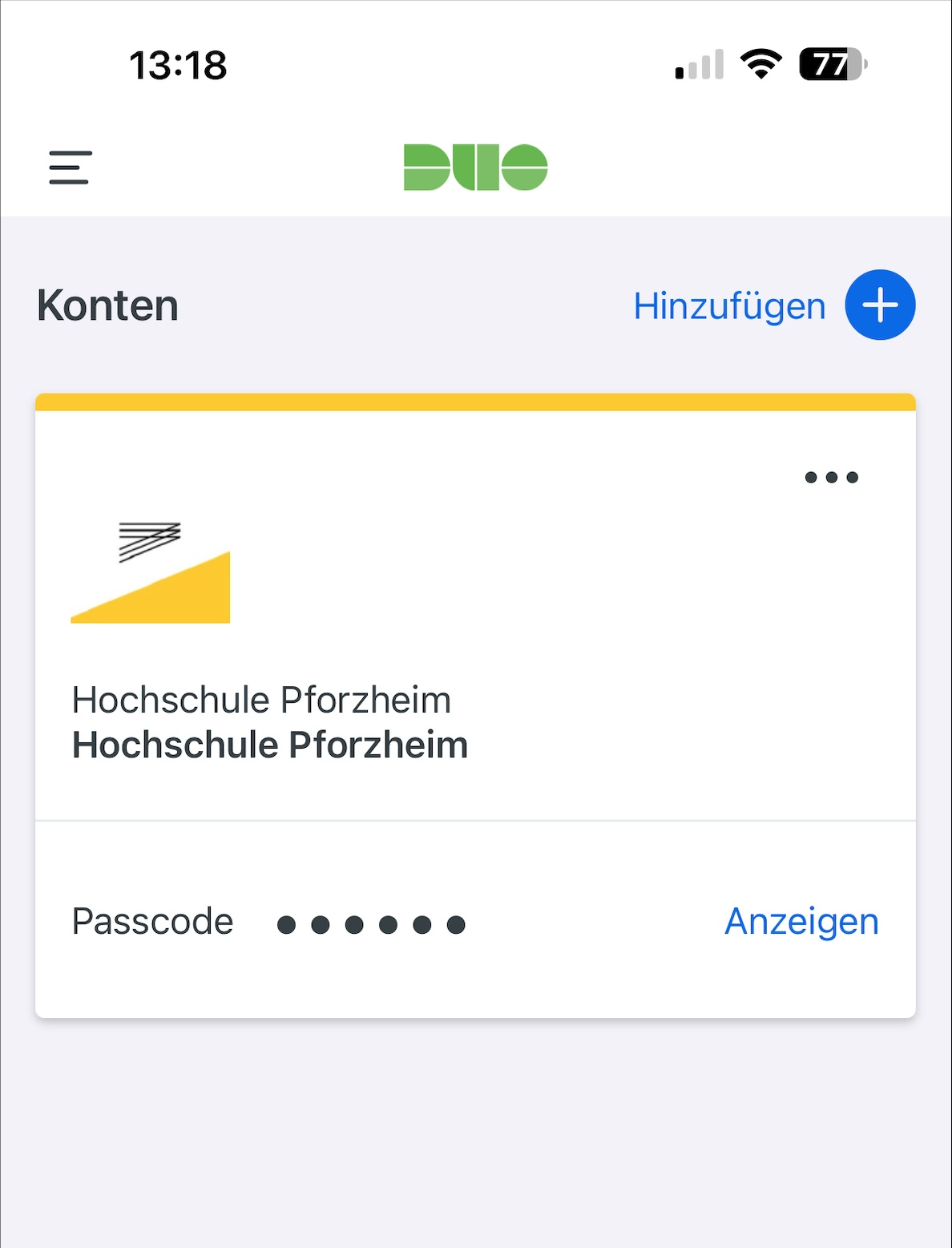
Done
Setup is complete.
Support
If you have questions or problems, contact Campus IT:
Campus IT Service Desk
campusit-service(at)hs-pforzheim(dot)de