Install Campus Printers on Windows
Open Windows Explorer and enter the following address in the address bar:
\\printsrv01.stud.ad.fh-pforzheim.deA login window will open. Sign in with your university account:
- Username: your university account ID (everything before the
@in your university email address) - Password: your university password
Also enable Remember my credentials so the printer remains configured.
Steps to Install Drivers
Step 1
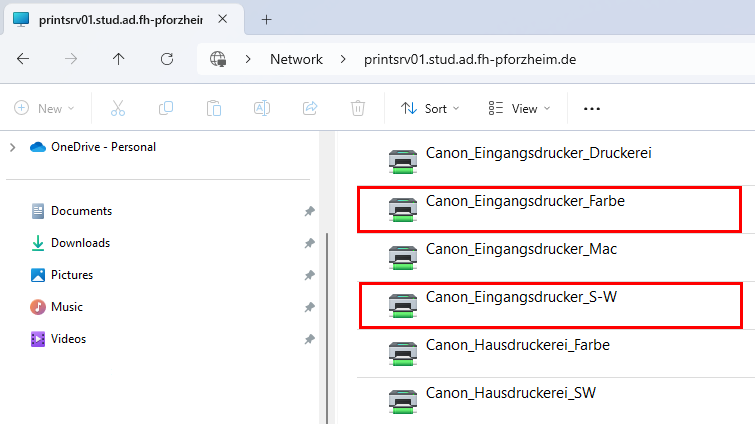
In Windows Explorer, you will see a list of shared printers.
Step 2
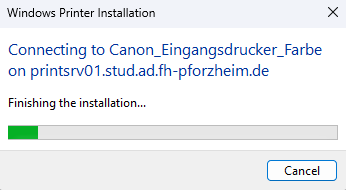
Select “Canon_Eingangsdrucker_Farbe”, right-click the selected printer, and choose “Connect”. The printer driver is installed automatically and the printer is created.
Step 3 (optional)
Repeat the process if needed with “Canon_Eingangsdrucker_S-W”.
Last updated on